Back
My Role
Led UX design from research to final interface, conducting user interviews, ideating, and creating user flows and designs.
Team
Sole UX designer
Duration
2 days
Overview
It was a hypothetical design assignment that i worked upon. Employees in hybrid work models struggle to coordinate office visits and book limited seats efficiently. To solve this, I designed a mobile app for seat booking, team coordination, and schedule management
Impact
Improved team collaboration and scheduling efficiency. Optimized office space usage, reducing infrastructure costs. Identified areas for iteration, such as better notifications and process automation
The Background
The Covid-19 pandemic has had tremendous and swift effects on workplace culture. People have discovered that they don’t have to be in an office and that they can get most things done remotely. But what they missed is meeting their teammates, socializing, collaborating, and working together.
As hybrid work becomes a likely scenario for tens of millions of professionals post-pandemic, picking what day to Work From Office is set to become an important calculation
Problem statement
Design a mobile product experience that allows employees of companies with a hybrid work model (3 days office, 2 days WFH) to choose which days they should come to work. There are only 60 seats in the office for every 100 employees.
Timelines
This problem had only two days to be solved. I divided my work into three phases:
Research (user interviews + online research)
User flows & sketching
Creating the final user interface
Understanding the problem
To gain a deeper understanding of the issues and how various users are finding the existing hybrid model. I spoke with a few users from various businesses and roles.
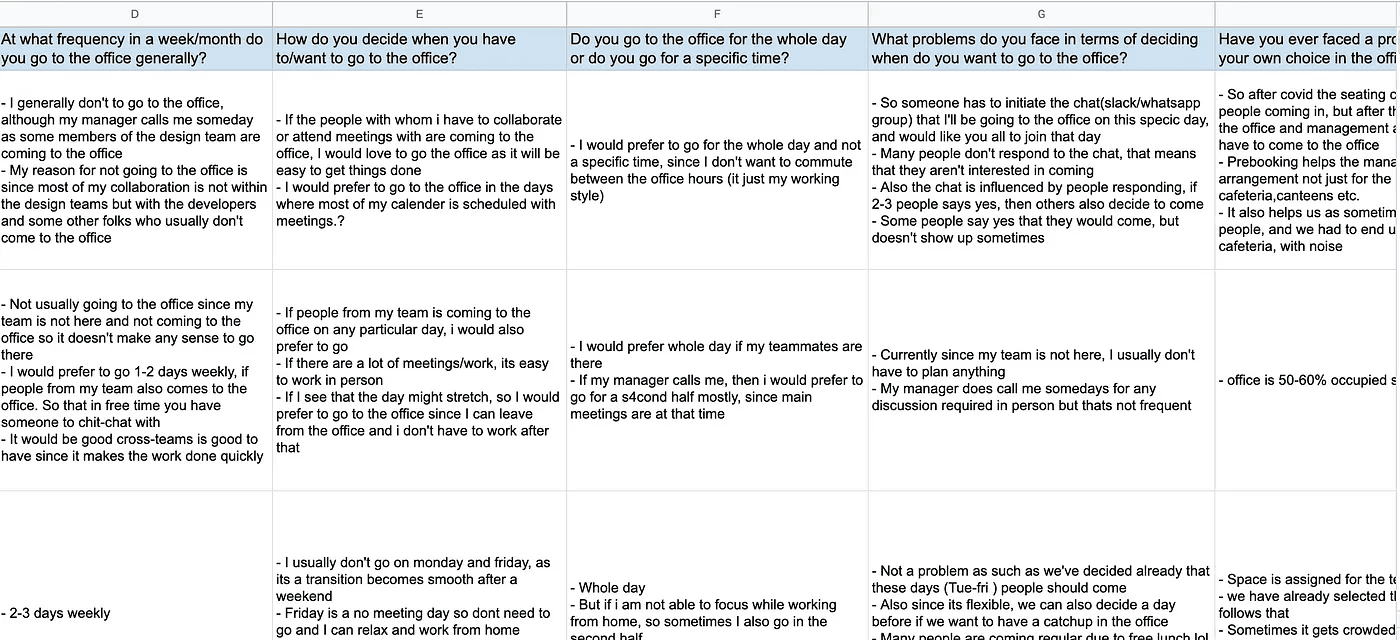
Research Insights
There are 3 types of working models:
People are not required to work in the city and can work remotely or from their workplace.
People are expected to visit the office 2–3 days per week, depending on their preferences (Assumption is to solve for this case)
Companies have set the days on which employees must report to work.
The major deciding factors to come to the office is :
Who else is coming i.e people from the same teams/pods, people you have meetings with
Days when you have a busy schedule and need to collaborate with more people
Problems deciding which days to go to work:
There is no easy way to find out who will be visiting the office.
It takes extra effort to text or call people separately.
No timely responses
There is no visibility of available office space.
Managers/Leaders were more likely to want to come to the office daily than individual contributors
User Personas
I discovered two personas as a result of my research: one for a leadership role and one for an individual contributor
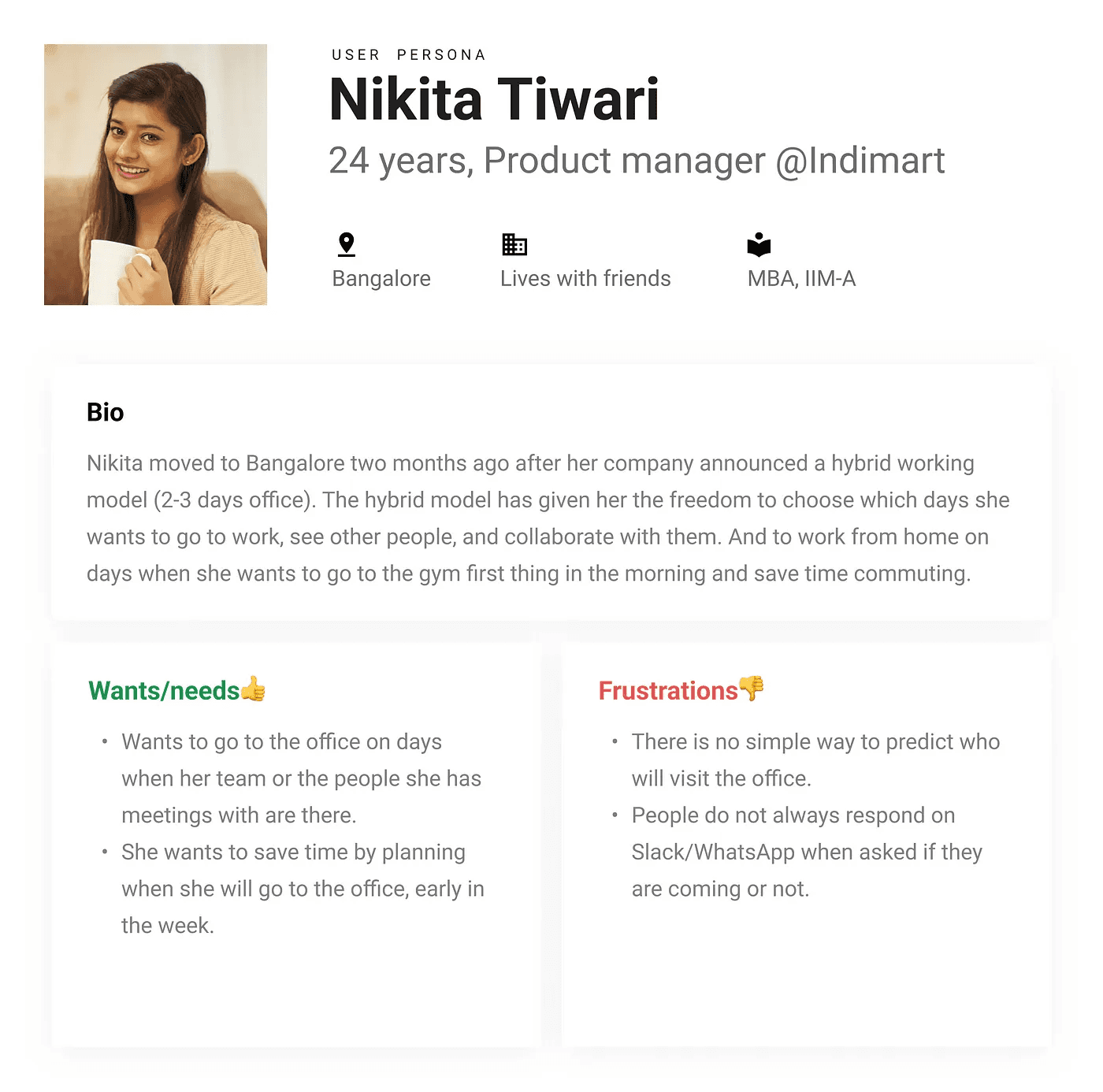
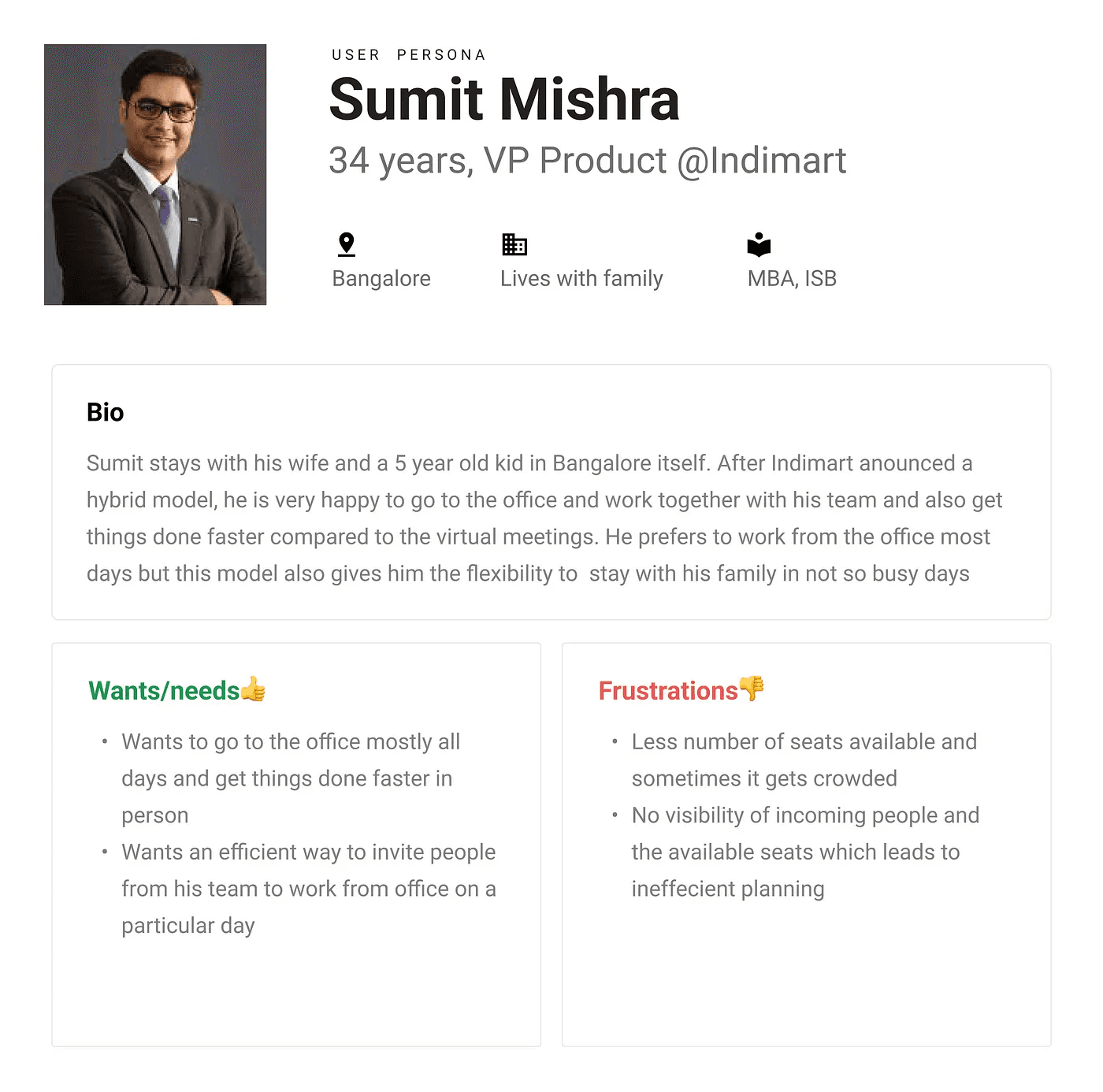
These personas helped me empathize with the users and comprehend their problems and objectives.
Experience mapping
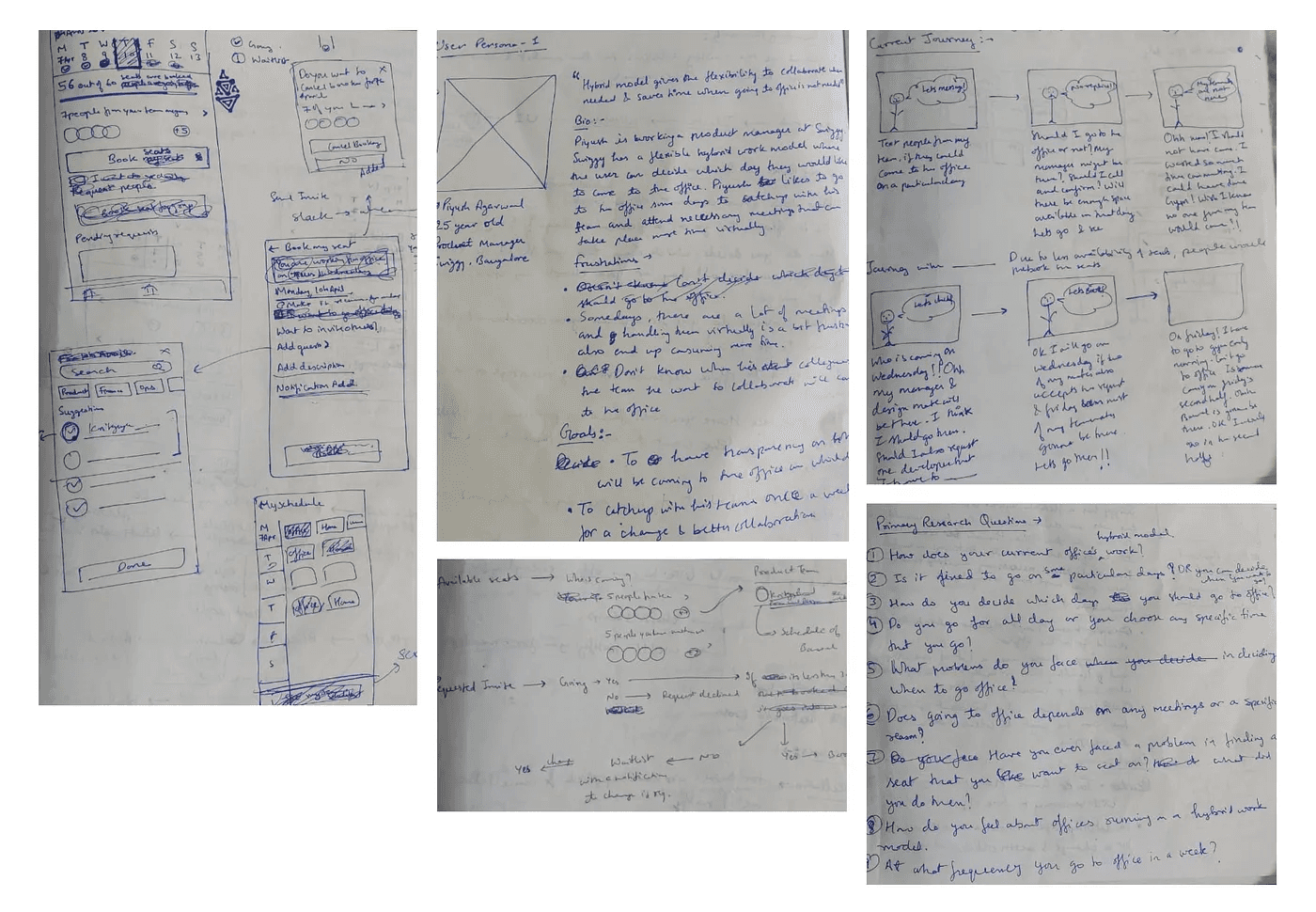
I imagined the current user journey, where they plan their week to decide which days to come to the office. This assisted me in visualizing the tasks, pain points, and suggestions for improving their current journey.
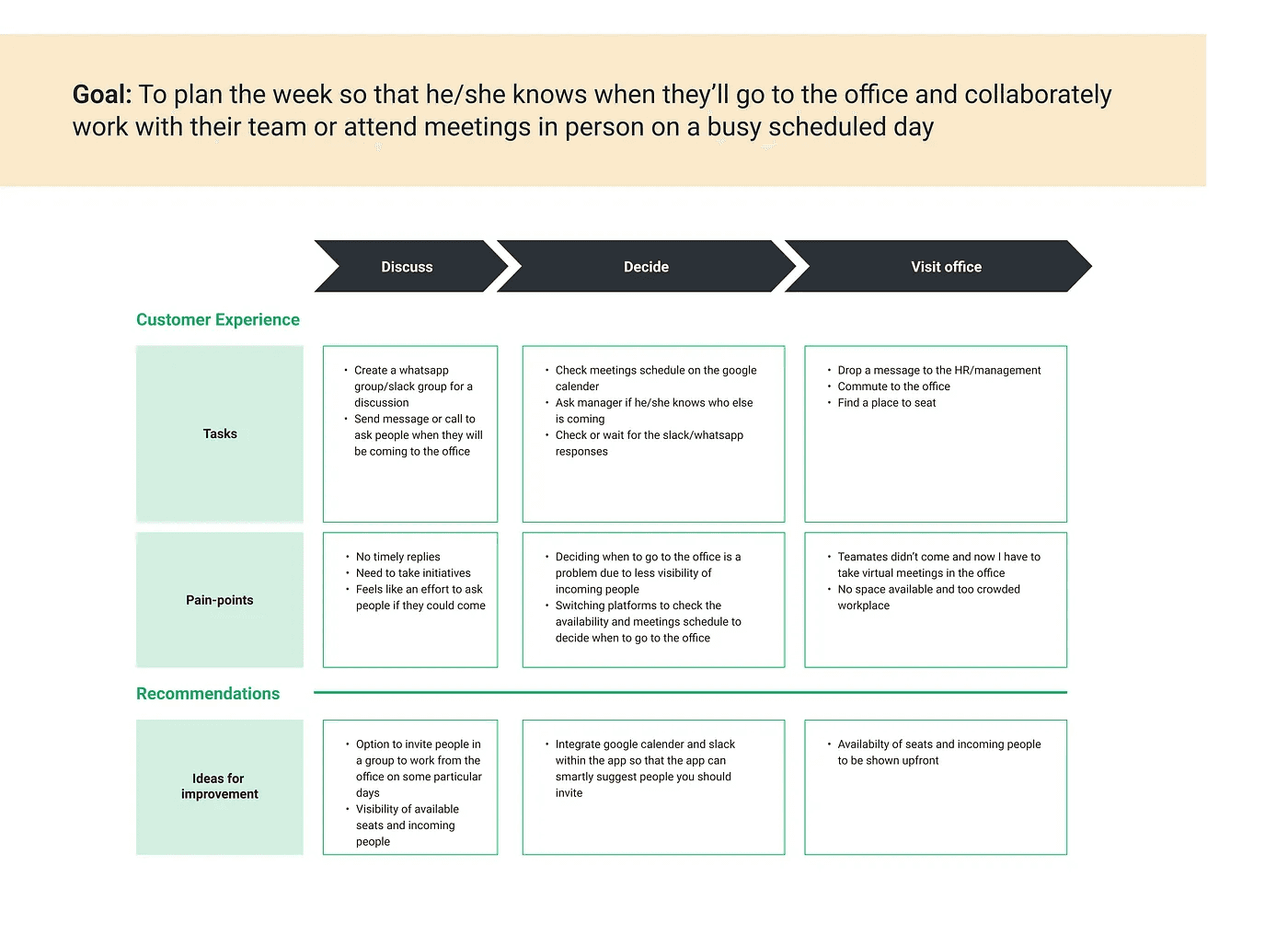
I was able to define problems, identify opportunity areas, and define ideas for improvement by using experience mapping.
Ideation and brainstorming
With the personas and an experience map in mind, I began brainstorming on the solution and product features that might solve the user's pain points. In addition, in order to proceed with the solution, I made some assumptions.
Assumptions
The working model requires people to come to the office 3 days per week, depending on their preference.
Every employee works in the same city as the company.
The company has 100 employees and only 60 office seats are available.
The office is currently only in one location.
To retrieve all employee information, the app can be integrated with the Google Calendar and Slack APIs.
People are welcome to come to the office on any day of the week if there is enough space.
Everyone is fine with telling others which days of the week they intend to come to work.
Product Features
Users can see who is coming into the office and filter them out using teams/meetings.
Users can reserve a seat for themselves or invite others to work with them.
Users can accept or decline the invitation; if the user accepts the invitation, the seat will be booked automatically if available; otherwise, the user will be placed on the waitlist.
Users can see who has accepted or declined the request for the invite
If a user wants to book for more than three days in a week, he will be placed on the waitlist so that others can book as well.
If seats become available, those on the waiting list will be notified a day before whether their seat is booked or not. They can also change the type of notification in the settings.
Priority would be given to the leadership team for the availability of seats on the waiting list, and prior to that, it would be on a first-come, first-served basis.
Users can request to visit the office on a daily basis, and they will be assigned days to visit the office based on their availability for the selected time period.
Solution
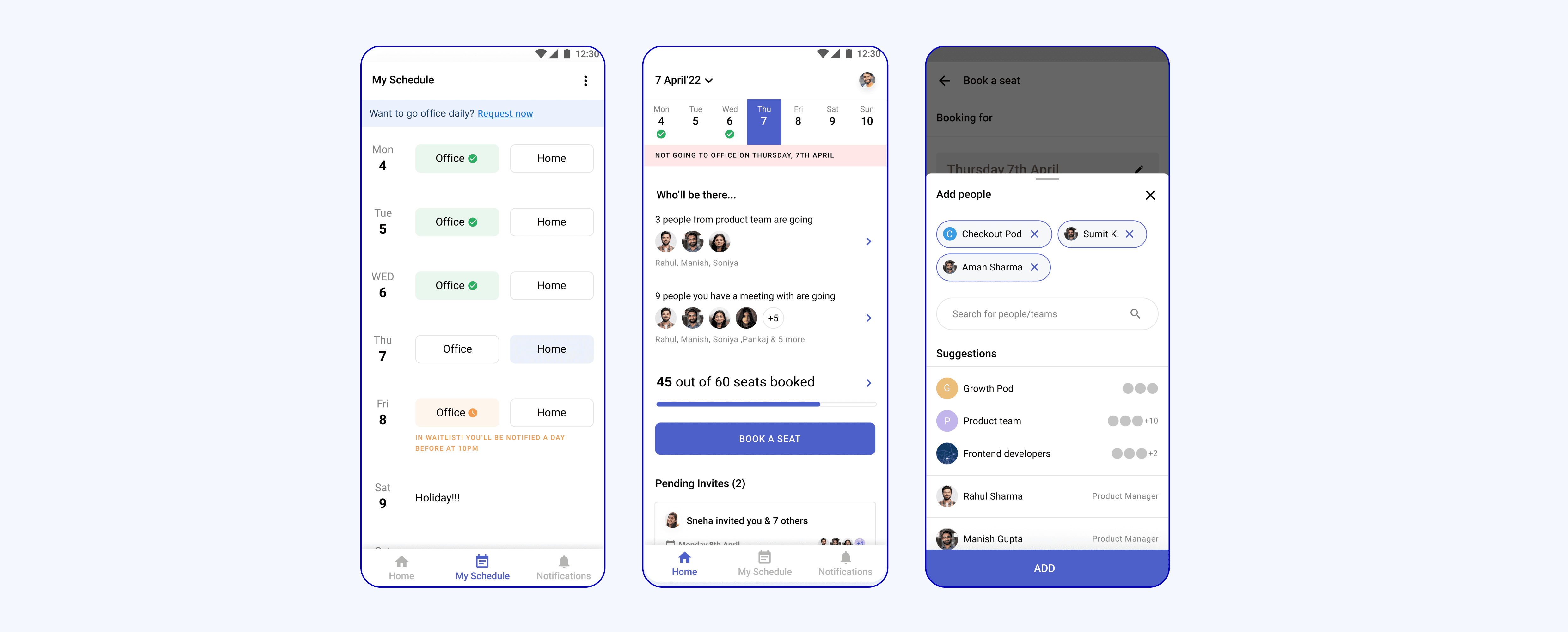
“BookMyDays” is a mobile app experience that will assist employees in deciding which days they should come to work and pre-book their seats to avoid overcrowding.
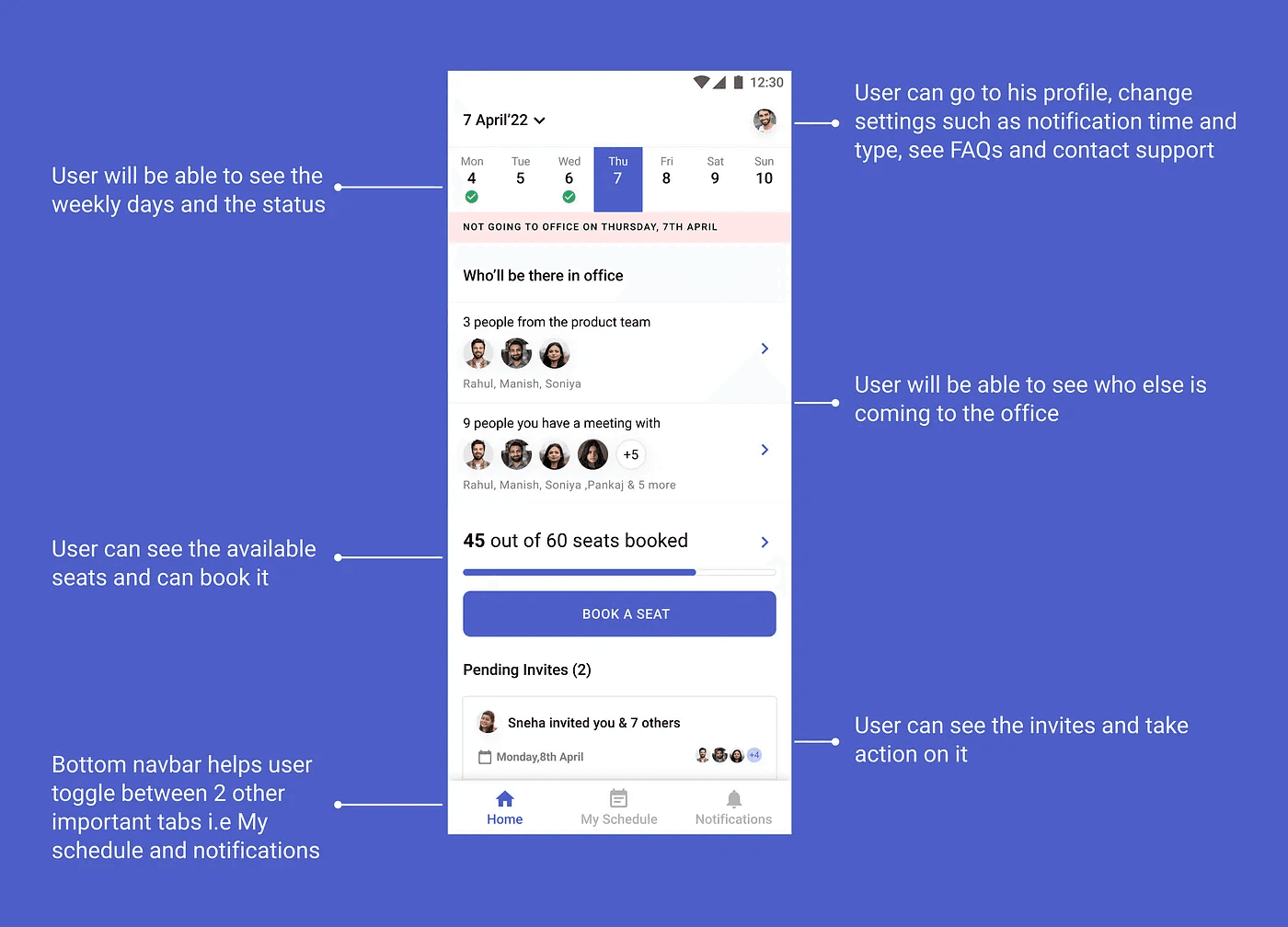
User flows
Flow-1: The user wants to see who else is coming to the office and what their schedule looks like
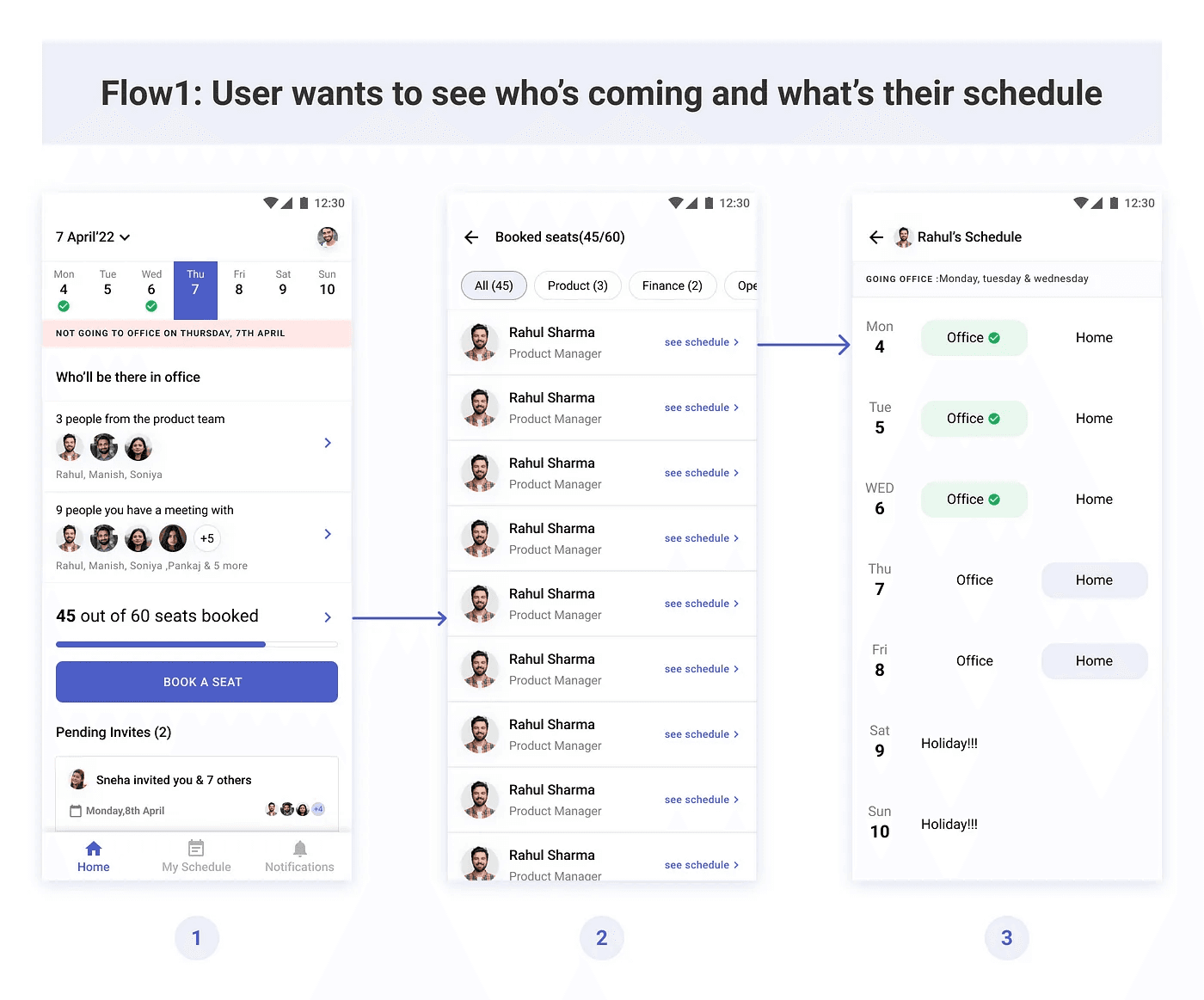
The user can view the number of booked seats for the selected date and click on it to see who else is visiting the office.
The user can see a list of people who are arriving at the office, filter them by the team, and click on it to see their schedule.
The user will be able to view the selected employee’s schedule.
Flow 2: The user wants to book a seat for himself and invite others
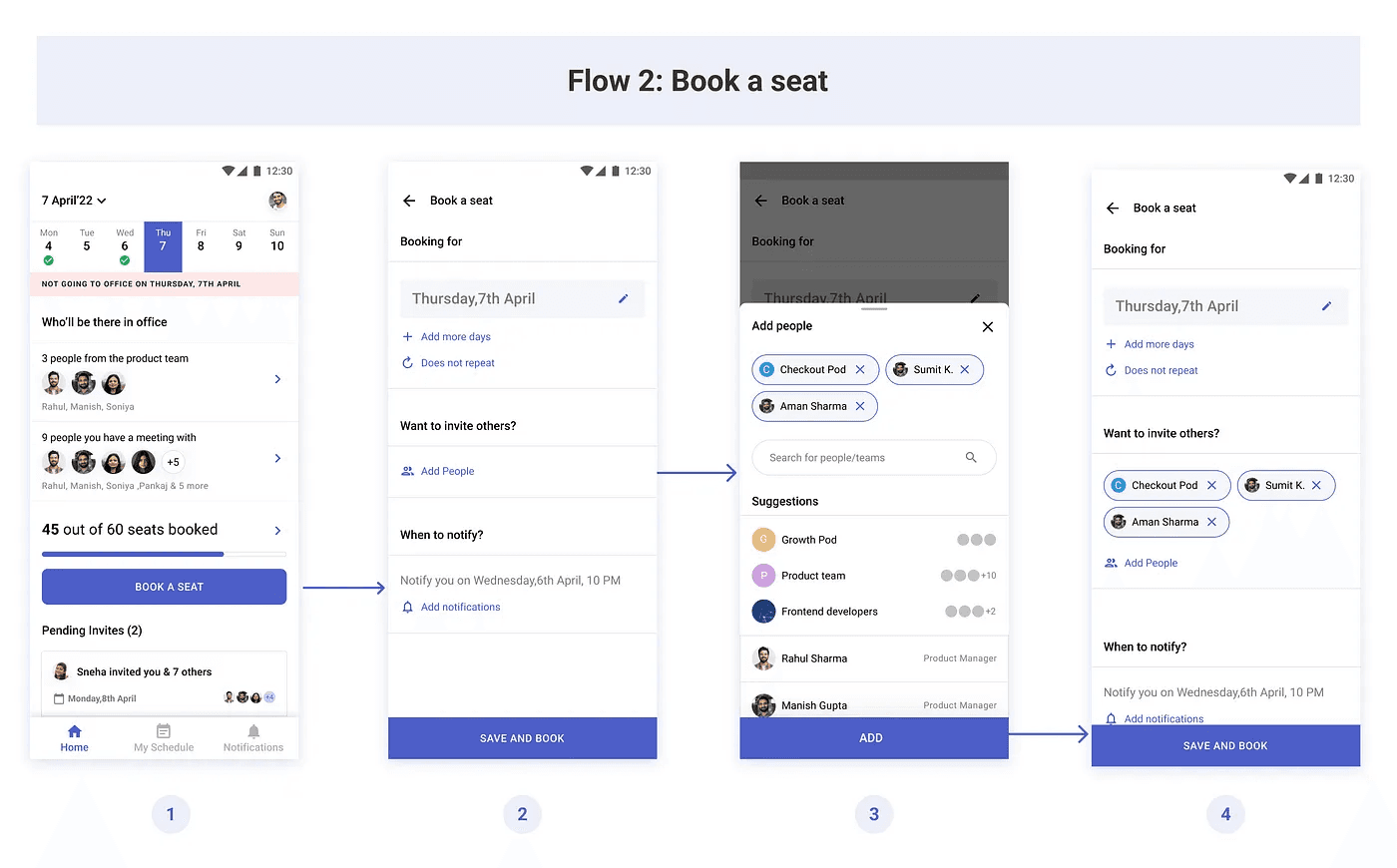
If a seat is available on a specific day, users can book it.
When the user clicks on book a seat, the selected date is added as the default, which the user can change. Users can invite others by clicking on add people. The user will see the suggestions based on his/her teams, pods, and the people they have meetings with
Once the employees have been added to the invitation, the user can click on “Book and Invite” to reserve a seat for themselves. The people invited will receive a notification, and if they accept, their seats will be reserved based on availability.
Flow 3: The user wants to view and plan or modify his or her schedule.
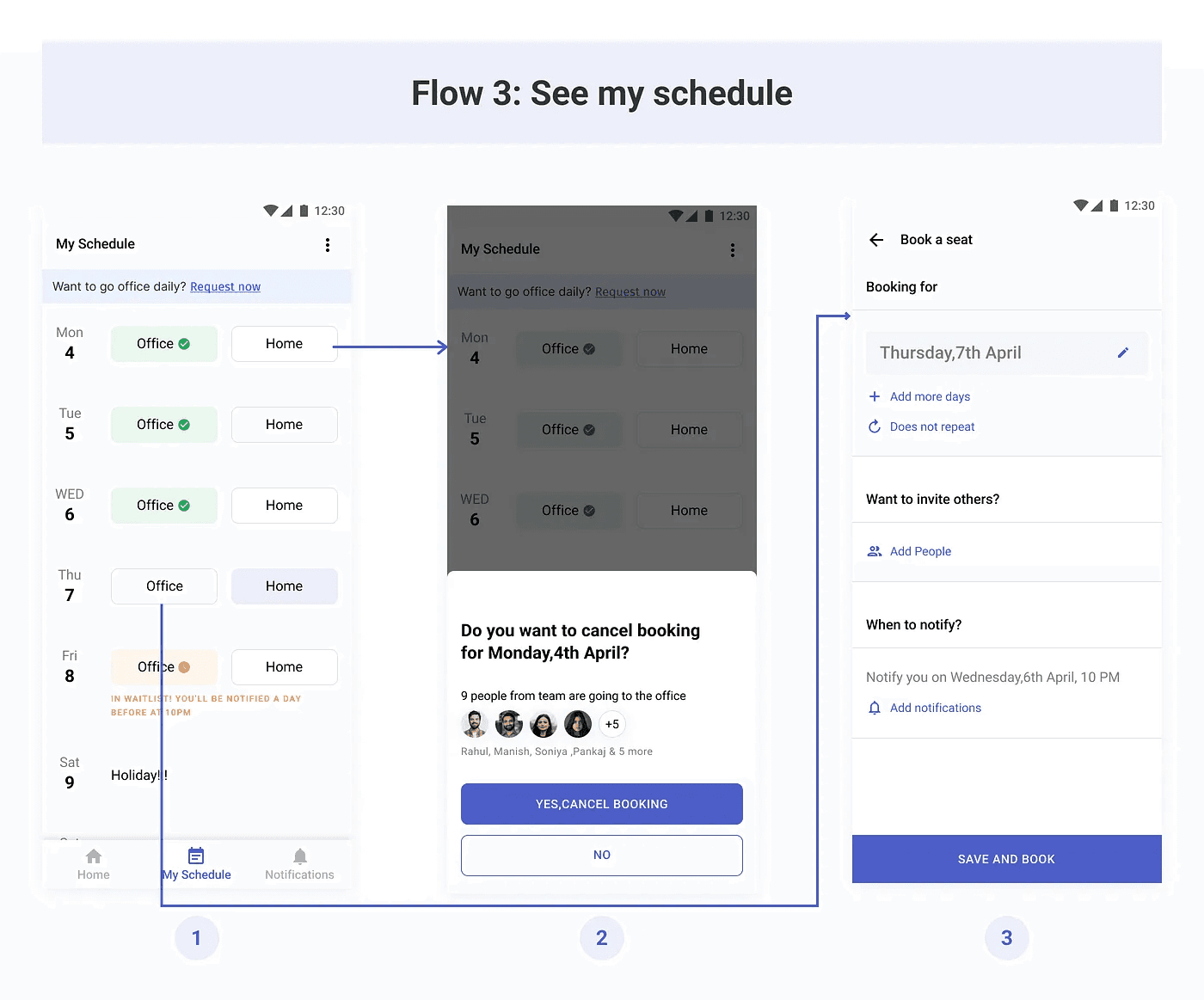
In the “My Schedule” section, the user can view their schedule. The displayed view is weekly; by scrolling, the user can see the schedule for the following week.
If the user clicks on home (first screen), the option to cancel the booking for that specific date appears.
If the user selects the office (first screen), the user will be guided through the process of booking a seat.
Flow 4: The user wants to go to the office daily
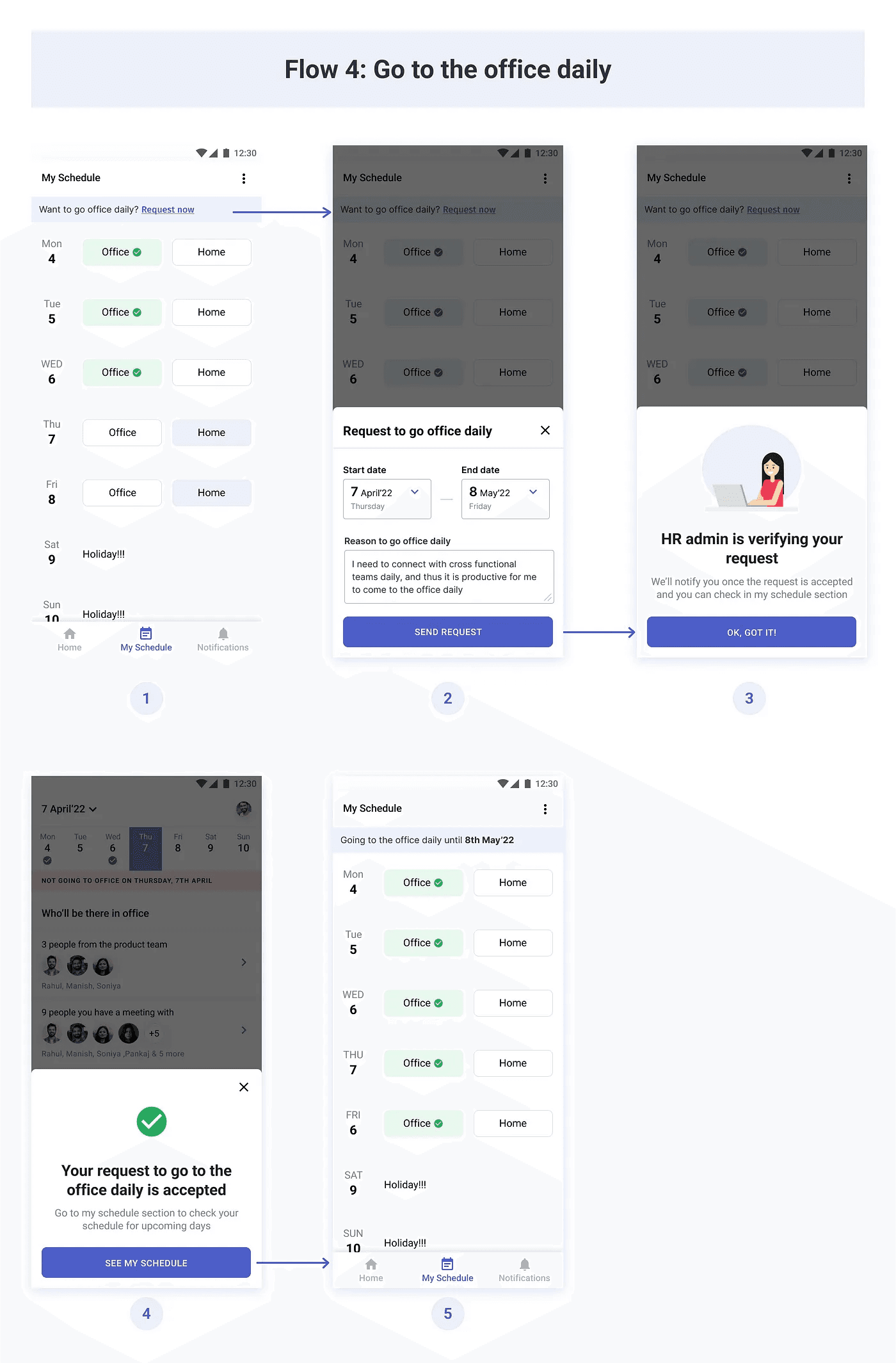
In the My Schedule section, the user selects Request Now to Go to the Office daily
The user must specify the start and end dates, as well as the reason for going to the office on a daily basis.
When a user submits a request, the HR administrator will review it and accept or reject it based on the reasons stated and the availability of seating space.
After some time, the user will be notified of the status of the request (The leadership team will be given priority here)
The calendar can be viewed in my schedule section by the user.
Flow 5: The user wants to see pending invitation requests
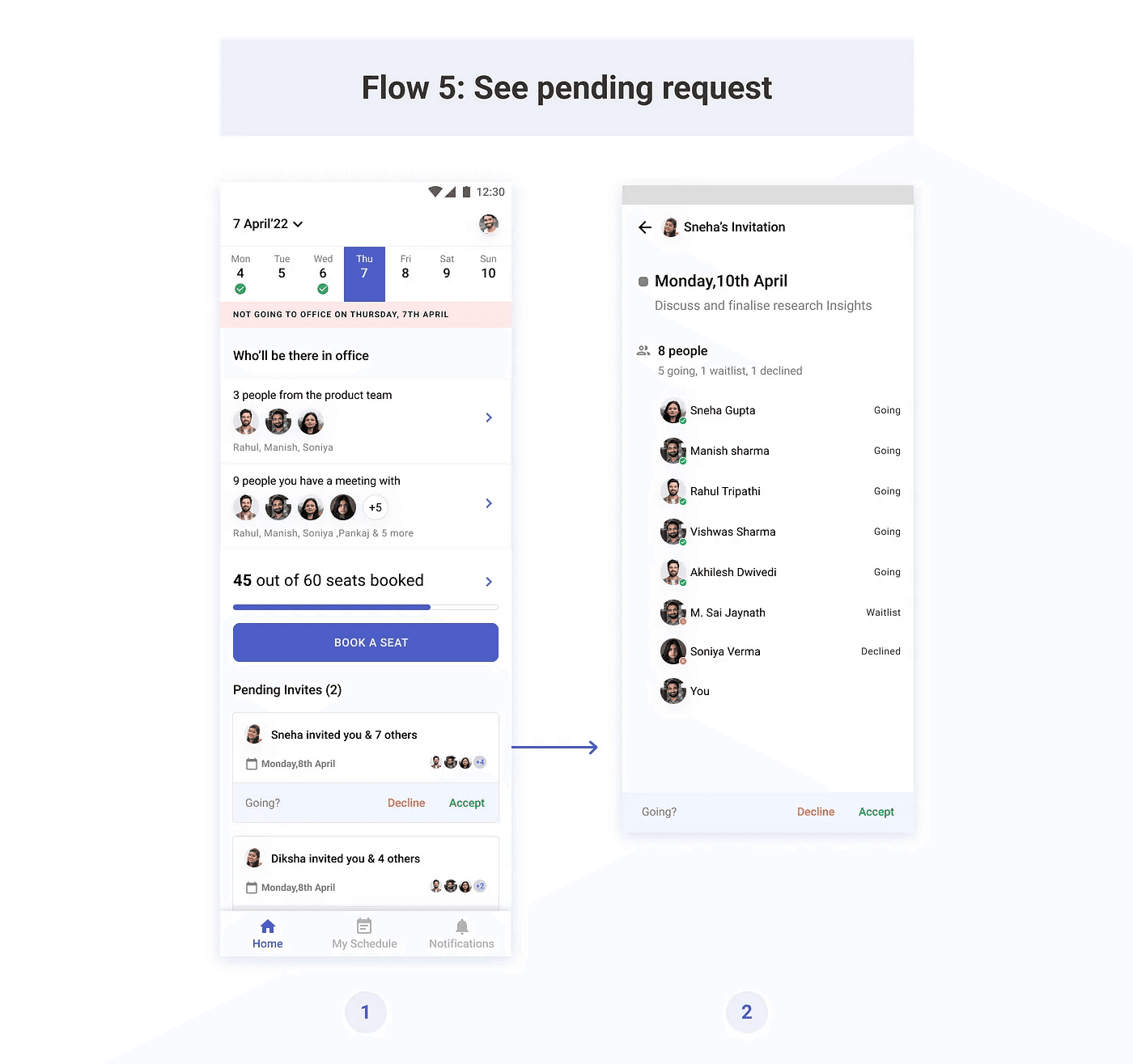
On the homepage, users can view all pending invitation requests.
When the user clicks on it, he will be able to see all of the people who have been invited as well as their status in order to make a decision.
Homescreen use cases
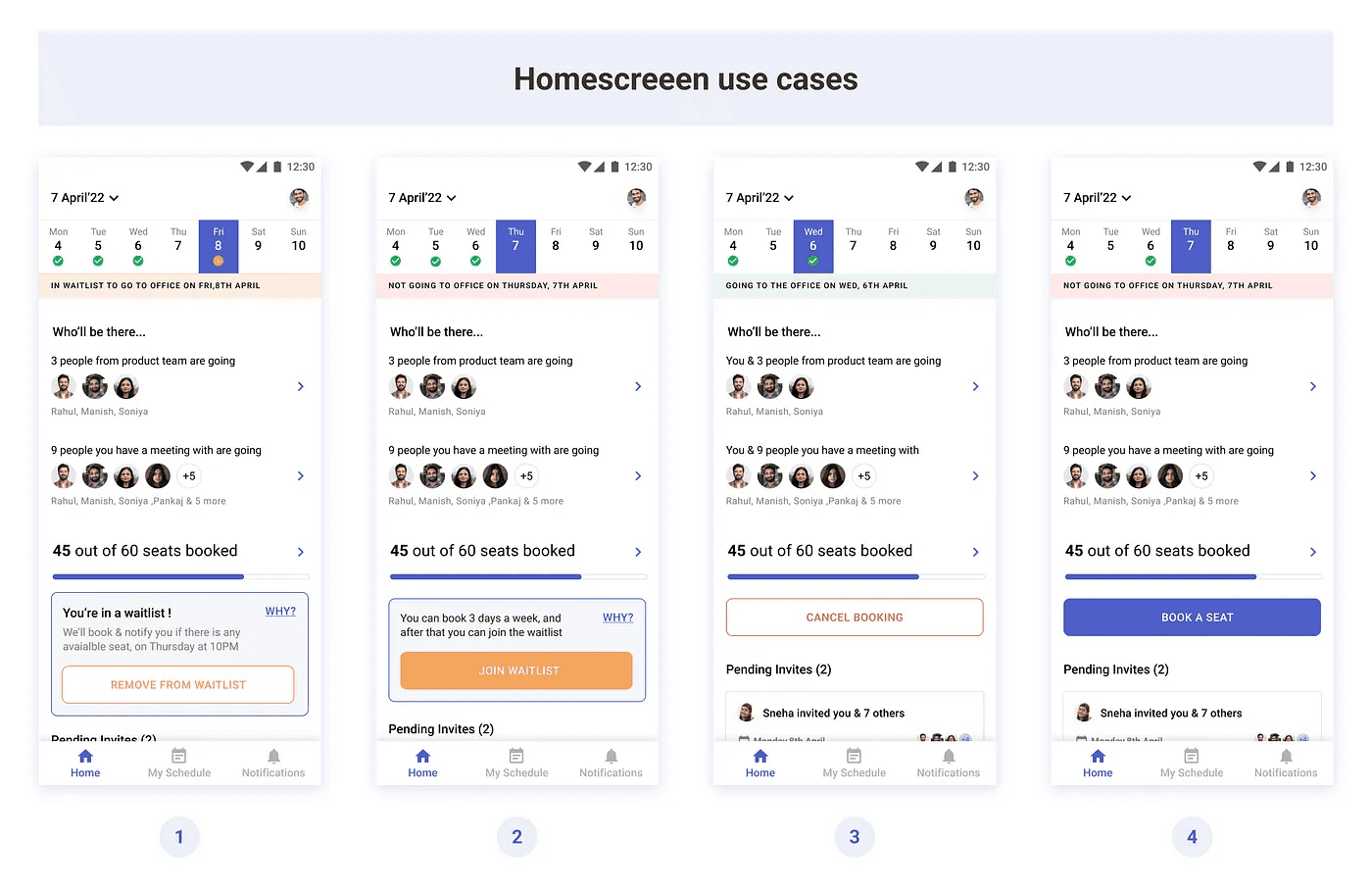
If the user is on the waitlist on a specific day, the user can take the action of having himself removed from the waitlist.
If the user has already reserved three days for this week, or there are no seats available for that day, the user will be given the option to join the waitlist.
If the user has reserved a seat, the user is given the option to cancel the reservation.
If the user has not yet reserved a seat, the user is given the option to do so.
Challenges associated
Because it is a complex problem to solve, it may take several days and iterations to determine the best possible solution that addresses all use cases. As a result, the current solution poses numerous challenges.
User might miss the notification as he might be busy
Possible solution: Send notifications via multiple channels such as email, app, slack, etc
The user reserved the seat, did not cancel, and did not appear on that day.
Possible solution: If there were people on the waitlist who didn’t get a chance because of them, a penalty could be imposed. (This must be discussed with HR and the management team)
How will the HR/operational team keep track of who is visiting the office?
Possible solution: It will be necessary to create a dashboard for the HR/operations team to manage this, as well as a dedicated admin to manage this platform.
How is this solution beneficial?
Employees will be able to plan their schedules more efficiently because they can work from home or in the office, depending on their preferences, while also saving companies money on infrastructure costs by scaling their teams without having to scale their office seating capacity.
What more I could have done?
More sketching and ideating could have helped me come up with more effective solutions.
I could have improved the flow of the going office daily by automating the entire process and making the HR admin’s life easier.
I could have tested the flow with at least 5 users to check if the proposed solution is working or not.